
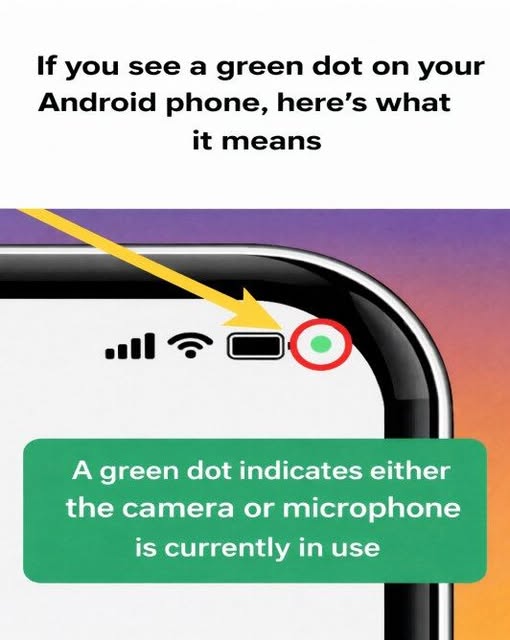
What the Green Dot on Android Phones Means and Why It Appears
A Small Icon That Often Raises Questions
The green dot that appears in the upper right corner of many Android smartphones can easily surprise users who are unfamiliar with its purpose.
At first glance, it may seem like a system glitch or an unexplained background notification, but it is actually an intentional privacy feature built into the operating system.
Rather than signaling a malfunction, the indicator is designed to increase transparency about how apps interact with sensitive hardware on your device.
Understanding the function of this visual cue helps transform it from a source of confusion into a reassuring sign that privacy protections are active.
A Built-In Privacy Indicator
On Android devices, particularly those produced by Samsung, the green dot serves as a privacy indicator linked to the camera and microphone.
Whenever an application actively accesses either of these sensors, the system displays the green dot in the status bar.
This means the indicator may appear when an app is recording audio, capturing video, or using both functions simultaneously.
The design ensures that users are always aware when the phone’s most sensitive components are in use.
How Android Differs From Other Systems
Unlike some competing platforms that use separate colors to distinguish between camera and microphone activity, Android combines both alerts into a single green symbol.
This simplified approach makes the notification consistent regardless of which sensor is being accessed.
Whether the device is recording a voice note, running a video call, or using the camera for content creation, the same indicator will appear.
The unified design prioritizes clarity and immediate recognition over multiple visual cues.
Why Privacy Indicators Were Introduced
The introduction of privacy indicators reflects a broader shift toward greater user awareness of digital privacy.
Over time, concerns about unauthorized recordings, background data access, and excessive app permissions have grown among smartphone users.
In response, Android integrated system-level monitoring features into newer versions of the operating system.
These indicators were created to ensure that no application can silently access the camera or microphone without notifying the user.
Not a Warning, but a Transparency Feature
The presence of the green dot does not automatically indicate a threat or security issue.
Instead, it confirms that the device’s privacy monitoring system is functioning as intended.
By providing real-time feedback about sensor usage, the feature promotes transparency and user control.
Rather than signaling danger, it acts as a safeguard designed to keep users informed about ongoing hardware access.
Common Situations When the Green Dot Appears
In many cases, the appearance of the green dot is entirely expected and directly linked to normal phone usage.
Activities such as video calls, voice recordings, camera usage, and social media video uploads all require access to the microphone or camera.
When these functions are active, the indicator simply reflects that the device is performing tasks that rely on audio or visual capture.
In these situations, the icon serves as confirmation of actions the user is already aware of.
Why the Indicator Can Sometimes Cause Confusion
Confusion typically arises when the green dot appears while no obvious camera or microphone activity is taking place.
Users may not immediately recognize that a background app or previously opened application still has active sensor permissions.
This unexpected appearance can lead to concerns about privacy or unauthorized access.
However, the system is designed specifically to highlight such activity so users can investigate further.
How to Identify the App Using the Camera or Microphone
Android provides a straightforward way to determine which application is responsible for triggering the privacy indicator.
When the green dot first appears, a brief icon may show whether the camera, microphone, or both are being accessed.
After a short moment, this larger icon minimizes into the small green dot in the corner of the screen.
To see more details, users can swipe down from the top of the display to open the notification shade or quick settings panel.
Accessing Detailed Privacy Information
Within the quick settings panel, tapping the privacy indicator expands a dialog box with additional information.
This dialog identifies which sensor is currently in use and names the specific app responsible.
If the listed app corresponds with an activity the user initiated, such as a call or recording, no further action is required.
The system is simply providing transparency about active permissions in real time.
Steps to Take if the App Is Unfamiliar
If the indicator appears and the listed app is unfamiliar or unexpected, users can take immediate steps to review their privacy settings.
Opening the device’s Settings menu and navigating to the Privacy section allows access to the Permission Manager.
From there, users can see which apps have permission to use the camera and microphone.
This overview makes it easier to detect apps that may have unnecessary or previously forgotten access.
Managing Permissions for Better Control
Permission controls allow users to adjust how and when apps can access sensitive sensors.
Permissions can be revoked completely or limited so that an app only uses the camera or microphone while actively in use.
This level of customization ensures that apps cannot access hardware in the background without clear user approval.
Regularly reviewing these settings can significantly improve device security and peace of mind.
When Uninstalling an App May Be Appropriate
If an unfamiliar app appears to be accessing sensors without a clear purpose, uninstalling it may be the safest option.
Removing unnecessary applications reduces potential privacy risks and simplifies permission management.
This proactive approach helps maintain control over personal data and device functionality.
It also reinforces the role of the green dot as an early alert rather than a reactive warning.
The Role of System-Level Monitoring
Because the privacy indicator is embedded directly into the Android operating system, it cannot be bypassed by third-party applications.
This system-level integration ensures consistent monitoring across all apps that request sensor access.
Even background processes must trigger the indicator if they attempt to use the camera or microphone.
This design enhances transparency and reinforces user trust in the platform’s privacy safeguards.
Empowering Users Through Awareness
The green dot ultimately represents a shift toward empowering users with clearer insight into how their devices operate.
By making sensor usage visible, Android encourages informed decision-making about app permissions and privacy settings.
Instead of operating silently, the system communicates openly about hardware access in real time.
This approach aligns with growing expectations for accountability in digital technology.
A Reassuring Sign Rather Than a Cause for Alarm
Once its purpose is understood, the green dot becomes less mysterious and more reassuring.
It signals that privacy protections are actively monitoring sensor activity and keeping the user informed.
Rather than indicating a problem, the icon confirms that transparency features are working as designed.
In everyday use, it serves as a subtle but important reminder that control over personal data remains in the user’s hands.